Start with a real or invented product. Make three campaign emails and review them in Gmail. Then use what you learned to automate a process in your business.
Connect a toolDictate your briefWrite three emailsReview in GmailBuild your own process
Ask participants to
Open ChatGPT or Claude. Choose a product to sell.
Before moving on
Everyone can name their product and its buyer.
Bring a phone or laptop. Tool connections and scheduling depend on your account.
02 / Exercise3 minutes
AI is a genie. We’re all CEOs now.
Think of AI as a genie that wants to help but cannot read your mind. What you leave vague gets filled in with its defaults. Your job resembles a CEO’s: choose what matters, supply context, set limits, and judge whether the result is good enough. The agent can propose a method and do the work.
You / the CEO
Decide what matters
Choose the outcome.
Show what good looks like.
Set the limits and approve the result.
AI / the genie
Work out how to do it
Propose an approach.
Use the available tools.
Make the output and check the work.
Review the result and explain what needs to change.
Give everyone one minute to write three decisions for their product. Take one example from the room and point to who owns each decision in the visual.
Ask participants to
Write three things the assistant should know before writing your campaign: who buys it, what you are offering, and one decision you want to keep.
Before moving on
Each person has an audience, an offer and a decision they will make themselves.
03 / Exercise7 minutes
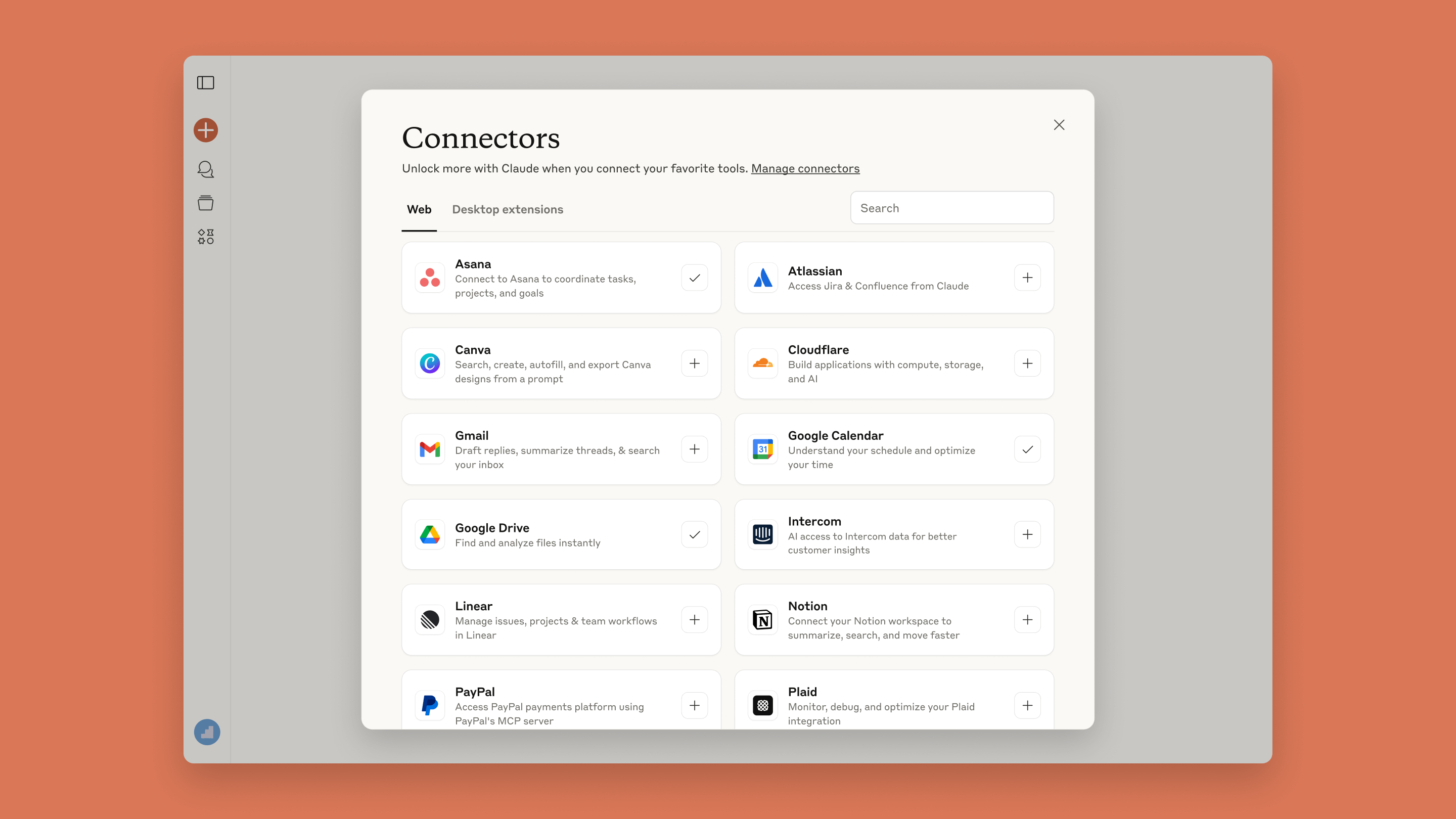
Connect Gmail to your assistant.
We will save the campaign as three Gmail drafts. Connect the account you intend to use and check its permissions. The assistant needs to be able to create drafts; reading email alone is not enough. If your account cannot do that, pair with someone who has access or save the drafts manually.
Check what you can do with my connected Gmail in this chat, especially reading an email and creating unsent drafts. Explain which actions are available and what you have not verified. Ask which account and non-sensitive email to use, then verify that one read. Do not send, create, change or delete anything yet.
Facilitator
Show one connection on your own screen. Leave time for sign-in. Do not ask participants to share passwords, tokens or private inbox content.
Ask participants to
Use the setup guide for your assistant to connect Gmail. Paste the request below, identify the account and choose one non-sensitive email for the read test.
Before moving on
The assistant reads the chosen email correctly and reports whether draft creation is available. We will verify the write in exercise 07.
04 / Exercise5 minutes
Describe your product out loud.
Use speech-to-text in the message box to describe what you sell, who it helps and why someone would want it. Read the transcript before submitting. If you prefer, type. The result will become the product brief for your campaign.
Help me turn what I say next into a short product brief. Capture the product, intended buyer, offer, benefit, tone and what I want a reader to do. Ask about important gaps. Separate facts I supply from your suggestions. This can be a real or invented product. Do not write the campaign yet. Here is my product:
Facilitator
Dictate a short description of your own example product. Show how you correct a transcription error. Have participants use their chosen product and keep this chat for exercises 05–07.
Ask participants to
Paste the starter below, then dictate a 30-second description of your product. Answer the follow-up questions and correct the written brief.
Before moving on
The brief accurately names your product, buyer, offer and intended next action. You have corrected any invented facts.
05 / Exercise4 minutes
Turn a vague request into one you can check.
Use the progression below to write a request for your own campaign. Name the output, use your product brief as the source, and state how you will judge the result. Decide what the assistant may choose and where it must ask you.
A vague request
“Help with my marketing.”
The assistant chooses the audience, format and offer.
A named output
“Write three emails about my workshop.”
The format is clear. The audience and offer are still guesses.
An output with context
“Use this brief to write three emails for founders. Use this example for tone.”
The assistant has a source, an audience and a reference.
An output you can check
“Use this brief and tone example. Write three emails for founders, each under 120 words with one CTA. Check claims against the brief. Ask for missing facts. Save drafts; do not send.”
You can judge the result and see where permission ends.
Illustrative outcomes, adapted from Andrew Rose’s prompting examples. More detail helps when it resolves a decision that matters.
Facilitator
Keep all four examples visible. Give participants two minutes to adapt the last one to their product. Ask to see one request with a clear check and permission boundary.
Ask participants to
Write a request for three emails using your brief. Specify the audience, one action for the reader, a word limit and a check against the source. End with: save drafts; do not send.
Before moving on
Your request gives you a way to judge the emails and states that sending requires a separate decision. Keep it for exercise 07.
06 / Exercise4 minutes
Fill the gaps in your campaign brief.
Andrew Rose’s eight questions help you supply information the assistant would otherwise guess. Check your product brief and request against the grid. Add the missing detail that would most change the emails, such as the buyer’s situation or an example of the tone you want.
Intent
What are you trying to accomplish?
Prepare a campaign for the new workshop.
Taste
What would a good result resemble?
Use this plainspoken email as a reference.
Audience
Who is it for, and what should they do?
Founders should be able to decide whether to attend.
Tools
Which sources and tools can it use?
The product brief in this chat and Gmail drafts.
Freedom
What can it decide? What is fixed?
Choose subject lines. Keep the approved offer.
Workflow
What order matters?
Read, draft, check, save in Gmail, review yourself.
Verification
How should it check the result?
Check claims and links; flag missing facts.
Feeling
What should the audience experience?
The workshop should feel practical and manageable.
Andrew Rose’s eight-part prompt framework, with examples for this workshop. Use a lens when it helps resolve something the assistant would otherwise have to guess.
Facilitator
Have participants use the grid to improve the brief they just made. Keep the work in the same chat. Credit Andrew for the framework.
Ask participants to
Check the eight questions. Add one useful tone reference, one limit on what the assistant may claim, and any missing detail needed to write your campaign.
Before moving on
The assistant has your corrected brief and requirements. Any unknown facts are marked as questions or placeholders.
07 / Exercise12 minutes
Make three emails. Review them in Gmail.
Everyone runs the same process with their own real or invented product: brief → three emails → fact check → Gmail drafts → human review. Field Notes Studio below shows an example. This process runs once. You review the drafts yourself; the assistant finishes when it has saved them.
Agent
Read the brief
Identify the offer, audience and missing facts.
Agent
Write three emails
Introduce the product, explain its value, invite a next step.
Agent
Check the draft
Compare claims, links and tone with the source.
Agent
Save in Gmail
With permission, create three unsent drafts. Leave recipients empty.
Human
Review in Gmail
Open all three drafts. Judge the promise and tone. Edit them yourself.
Start: your product brief. Finish: three Gmail drafts you have reviewed. One run, with a human-owned final step. The emails stay unsent.
Example: Field Notes Studio
A fictional business sells a 60-minute workshop on turning customer interview notes into useful insights.
Email 1: introduce the problem and the workshop.
Email 2: explain what participants will do.
Email 3: invite the reader to review the details.
A sample email draft
Subject: Put one customer interview to use
You spoke to customers. Now the notes are scattered across documents. In this 60-minute workshop, bring one transcript and organise its evidence into a table. Leave with three questions to investigate next. Workshop details: [approved booking URL].
The owner opens this in Gmail and decides whether the promise is accurate and the tone fits. Missing facts stay in brackets until supplied.
Use it in the chat with your product brief and campaign requirements.
Facilitator
Run the example once on your screen, then have participants use their own brief from exercises 04–06. Open Gmail Drafts to show the human-owned step. Help anyone without draft-writing access save manually, and record that difference.
Ask participants to
Use the request below with your product brief and requirements. Review the proposed sequence and approve saving three unsent drafts. Open Gmail → Drafts, read all three, and make one edit based on your judgement.
Before moving on
Three separate drafts are visible in the intended Gmail account. You have checked the claims, tone and next action, and can name a decision you made. Nothing has been sent.
08 / Exercise12 minutes
Map a different process in your business.
If you have an existing business, choose a small recurring process you actually do. Start a fresh chat and let the assistant interview you about the last time you did it. It will map the work and ask you to confirm that it has the whole process. Keep that map for exercise 09.
I have a business
Choose a real recurring process. Use the interview below.
I don’t have a business
Follow the facilitator’s separate activity from this point.
Participant
“The last time I did this, it started when… I opened… Then I checked… It was finished when…”
Assistant
Writes the steps, inputs, tools, people, outputs and exceptions. Asks what is missing.
Process owner
“Is this the full process, end to end? Yes or no.”
Split the group here. People with an existing business begin this interview. Give the other group its separate activity; that activity is still to be added to this workshop. Keep the business group on mapping, with no new tool connections until the check-in after 09.
Ask participants to
For the existing-business track, copy the workshop interview into a fresh chat. Choose a different process from the campaign. Describe a recent run, answer follow-up questions and correct the map before answering yes or no.
Before moving on
The map names the trigger, every tool and handoff, the output, and the finish. The process owner explicitly answers yes to the end-to-end read-back.
09 / Exercise5 minutes
Mark the human steps on your 08 process map.
Stay in the same interview chat. Look at each step of the map you just approved and decide who should own it. Use your Gmail review as a reference: the assistant could write the emails, while you judged the promise and tone. Correct its proposed split for your own process.
Agent
Give it bounded work
It has the inputs and tool access. You can specify what a correct result looks like.
Mark the step and its success check on your map.
Human
Keep a person’s judgement
The step depends on taste, relationships, responsibility or information only a person has.
Name the person and the decision they make.
Agent with approval
Prepare, then ask
The agent can prepare the work. A named person must approve the specific next action.
Write what they see and how their answer gets back.
08: approve the map → 09: mark the owners → facilitator check-in → 10: connect the tools for this process.
Continue the interview from 08. Keep its existing map.
Facilitator
Do a quick check-in before anyone connects more tools. Have each person show or report the human steps, who owns them and what happens next. Confirm the split, then release the group to exercise 10.
Ask participants to
Use the request below on your 08 map. Mark every step Agent, Human, or Agent with approval. Tell the facilitator which steps need a person and why. Confirm the check-in in your chat before moving on.
Before moving on
The same map now names the human decisions and their owners. You and the facilitator agree on the split. If work continues after a human decision, its reply channel and next action are identified.
10 / Exercise6 minutes
Connect the tools needed for the complete process.
After the check-in, use your marked process map to identify the tools it needs. Connect the missing services and test the specific action at each step. If work continues after a human decision, verify how the person receives the question and how the answer gets back into the workflow.
Build this connection checklist from your 08–09 map
What the process needs
Example
How to verify it
The input your process uses
Its source app, file or folder
Read one selected item and check it against the original.
The output your process makes
The destination named in your map
Save an approved test output and open it.
Human decisions, if work continues afterward
The owner’s chosen email or messaging app
Send an approved test question and retrieve its reply.
Work that waits or spans runs
Shared document or table
Save a run ID, version, status and action IDs. Read them in a later run.
Continuation, if your process needs it
Supported event or scheduled check
Detect the reply and continue the matching run once.
Facilitator
Check that participants have completed the human-step check-in. Have them build a connection list from their own map. A service may cover several roles; they only need tools their process uses.
Ask participants to
After the facilitator check-in, use the connection request in the same chat. Connect the missing services through the assistant’s setup UI. Verify the intended accounts with narrow reads and approved test writes.
Before moving on
Each step has a verified tool action or named manual handoff. Any continuing human handoff has a tested request and reply path, and waiting work has a record future runs can read.
11 / Exercise12 minutes
Run the process and check the result.
A process diagram tells you what should happen. A rehearsal shows whether the connections, instructions and handoffs actually work together. Use sample data and drafts so you can change something without affecting customers. Keep a record of what happened, including any step you still performed manually.
Expected output
Open the saved result and compare it with the brief.
Missing fact
Remove a required fact from your process. The assistant asks instead of inventing it.
Human revision
At a human step, inspect the result and request a change.
Wrong approval
If approval releases another action, try the wrong run or version. It stays paused.
Correct reply
If work continues, approve the right version. The next step runs once.
Repeated input
Present the same source again. Completed actions are not duplicated.
Facilitator
Ask participants to show a tool result, not the assistant’s claim that it succeeded. Where the same source might be processed twice, check how completed actions are recorded. Stop before retrying an uncertain write.
Ask participants to
Run your 08 process with sample data. Check its output, a missing input and a repeated input. Test each human step. Where automation continues afterward, try a revision, a wrong-version approval, then the correct reply.
Before moving on
The output meets the agreed requirements, missing facts cause a question and completed actions are not repeated. Human steps stop for the named person; any automatic continuation waits for the right answer.
12 / Exercise12 minutes
Schedule the process you have tested.
An unattended run needs the same instructions, source files and tool access that made the rehearsal work. Save those instructions as a runbook, and keep the run record somewhere future runs can read. Then agree on a cadence, timezone and first run. Review the complete task before activating it.
ChatGPT
Ask in the tested chat
Describe the work and cadence. Review the task in Scheduled. Supported app events are another option on eligible plans; time schedules and event triggers may need separate tasks sharing the same run record.
In the new Claude experience, ask in the conversation. In Cowork, use Scheduled → New task. Check which files and tools the task can reach; local files or apps may require the relevant computer to be available.
Save the real-business process we mapped in exercise 08 and successfully rehearsed as PROCESS-RUNBOOK.md where future runs can read it. Include tool accounts, input and output locations, human decisions, checks, run records and duplicate handling. Include reply-reading and continuation only where the approved process needs them. Ask for cadence, timezone and first run. Verify unattended tool and file access. Show the complete task and schedule for my approval. After approval, create it with your native scheduler if available, then verify the saved task and next run. If unavailable, label it NOT ACTIVE and give me the exact setup instructions. Do not substitute a reminder for execution.
Facilitator
Show where your own app lists scheduled tasks. Explain how to pause a task. If the account cannot execute the process unattended, record the blocker; a reminder still requires a person to do the work.
Ask participants to
Use the scheduling request for the real-business process you just tested. Confirm the runbook, file access, timing, permitted actions and any human reply check. Approve the reviewed task, then inspect it in Scheduled.
Before moving on
A saved task has the expected instructions, active status and exact next run with timezone. Its stop/pause conditions and any required human-response mechanism are explicit.
13 / Exercise5 minutes
Show another person what you have built.
A partner should be able to see where your process starts, what it produces, and when it still needs you. Show the actual output and task rather than explaining what you hope they will do. A blocked connection is useful information, but it means that part of the workflow remains unfinished.
Approved process
The owner confirmed that the map covers the work end to end.
Saved result
A completed rehearsal produced the expected output in the right place.
Human response
You reviewed the human-owned steps. If work continues afterward, the right reply resumed it without repeating completed actions.
Active task
The instructions and next run are verified, with a way to review and pause it.
Pair participants in the business track. Give each person two minutes to demonstrate and answer questions. Check their campaign drafts first, then the four process results shown here. The other group’s closing evidence will follow its separate activity.
Ask participants to
Show your three reviewed Gmail drafts. Then show your 08 process map, rehearsal output, human steps and scheduled task. Demonstrate a reply and continuation if your process needs one. Name the next run and where you will review it.
Before moving on
Your partner can identify the process’s start and finish, your remaining decisions, and how to pause the task. Record any unfinished step and who will resolve it.
Facilitator reference
Run of show
2:00–3:30 pm · 90 minutes
Time
Facilitator prompt
Participant key action
Resources to have in front of you
2:00–2:03
“Choose something to sell. It can be real or invented. Who would buy it?”
Open your assistant. Name a product and its buyer.
Phone or laptop; ChatGPT or Claude.
2:03–2:06
“You’re the CEO. What must the AI know, and which decision will you keep?”
Write your audience, offer and one human-owned decision.